
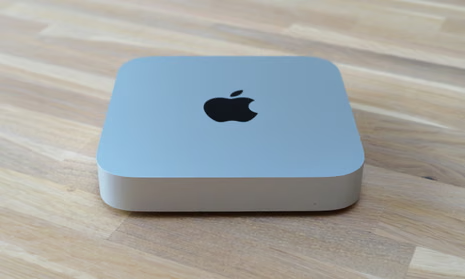
Setting Up a Mac Mini M2 as a Headless Plex Media Server
A personal reference for turning a Mac Mini M2 into a always-on, headless Plex media server on a home network.
A personal reference for turning a Mac Mini M2 into a always-on, headless Plex media server on a home network. These notes cover everything from initial macOS configuration to Plex installation and basic maintenance.
Step 1: Initial macOS Setup
Do the initial macOS setup with a monitor attached. Once SSH is configured you can go headless.
Enable Auto-Login
Auto-login is required so the machine boots into a user session automatically after a power outage or reboot — without needing someone to type a password at the login screen.
Note: macOS won't allow auto-login while FileVault is enabled. You'll need to disable FileVault first.
- Go to System Settings → Privacy & Security → FileVault → turn it off
- Wait for decryption to complete
- Go to System Settings → General → Login Items & Extensions → under "Automatically log in as", select your user account
Enable SSH (Remote Login)
Go to System Settings → General → Sharing and enable Remote Login. This gives you SSH access:
ssh username@<mac-mini-ip>
Step 2: Optimize some settings
A media server needs to stay awake. By default macOS will sleep after inactivity, which will interrupt streams and background tasks. Disable all sleep via pmset:
sudo su -

# Never sleep
pmset -a sleep 0

# Never spin down disks
pmset -a disksleep 0

# Never sleep the display
pmset -a displaysleep 0

# Keep Wake on LAN enabled
pmset -a womp 1

# Allow background tasks while "resting" (e.g. Time Machine, spotlight)
pmset -a powernap 1
Verify the settings stuck:
pmset -g
Disable a number of settings
# Disable Siri
defaults write com.apple.assistant.support "Assistant Enabled" -bool false

# Disable Game Center
defaults write com.apple.gamed Disabled -bool true

# Disable Photos auto-launch
defaults -currentHost write com.apple.ImageCapture disableHotPlug -bool true
Step 3: Install Homebrew and tools
Homebrew is the package manager for macOS. Most tooling in this setup flows through it.
/bin/bash -c "$(curl -fsSL https://raw.githubusercontent.com/Homebrew/install/HEAD/install.sh)"
After install, follow the printed instructions to add Homebrew to your PATH. On Apple Silicon this typically means adding to ~/.zprofile:
echo 'eval "$(/opt/homebrew/bin/brew shellenv)"' >> ~/.zprofile
eval "$(/opt/homebrew/bin/brew shellenv)"
Install necessary things
# Install additional packages
brew install wget zsh jq fastfetch python3 appcleaner flexget filebot transmission-cli

# Install oh-my-zsh
sh -c "$(curl -fsSL https://raw.githubusercontent.com/ohmyzsh/ohmyzsh/master/tools/install.sh)"
Step 4: Install Plex Media Server
To get Plex up and running we'll use our plexUpdate script, which we we'll also be able to use for updating Plex in the future.
# Install plexupdate script for installing and updating Plex
mkdir -p ~/Projects
git clone git@github.com:nilicule/plexupdate.git ~/Projects/plexupdate
~/Projects/plexupdate/plex-update.sh --install
Then open a browser and navigate to:
http://localhost:32400/web
Sign in with your Plex account and add your media libraries.
Make Plex Launch at Login
To make Plex start automatically on boot, add it to login items:
System Settings → General → Login Items & Extensions → add Plex Media Server.app
Or via the Plex menu bar icon: click it and choose Launch at Login.
Step 5: Assign a Static IP
In your UniFi controller, assign a fixed IP to the Mac Mini via DHCP reservation (based on MAC address). This ensures your Plex server is always reachable at the same address on your local network.
Step 6: Network Access & Optional Port Forwarding
Plex runs on port 32400 by default.
For local network access only, no firewall changes are needed. If you want remote access outside your home network, either:
- Use Plex Relay (included with Plex Pass, no router config needed, but slower)
- Forward port 32400 on your router to the Mac Mini's static IP (faster, direct connection)
In UniFi: Settings → Firewall & Security → Port Forwarding → add a rule for TCP 32400.
Maintenance Notes
Updating Plex
Plex will show an update notification in the menu bar. Download the new .dmg from plex.tv, install over the existing app, and relaunch.
Check Plex Status
# Check if Plex process is running
pgrep -l "Plex Media Server"

# View Plex logs (useful for transcoding issues)
tail -f ~/Library/Logs/Plex\ Media\ Server/Plex\ Media\ Server.log
Plex Data Location
Plex stores its database, metadata, and transcode cache here:
~/Library/Application Support/Plex Media Server/
Back this up if you want to preserve your metadata, watch history, and library state.
Useful pmset Reminder
# Check current power settings
pmset -g

# Check power assertion (what's preventing sleep right now)
pmset -g assertions
TODO Checklist
- Configure Plex
- Migrate Plex library

Comments